
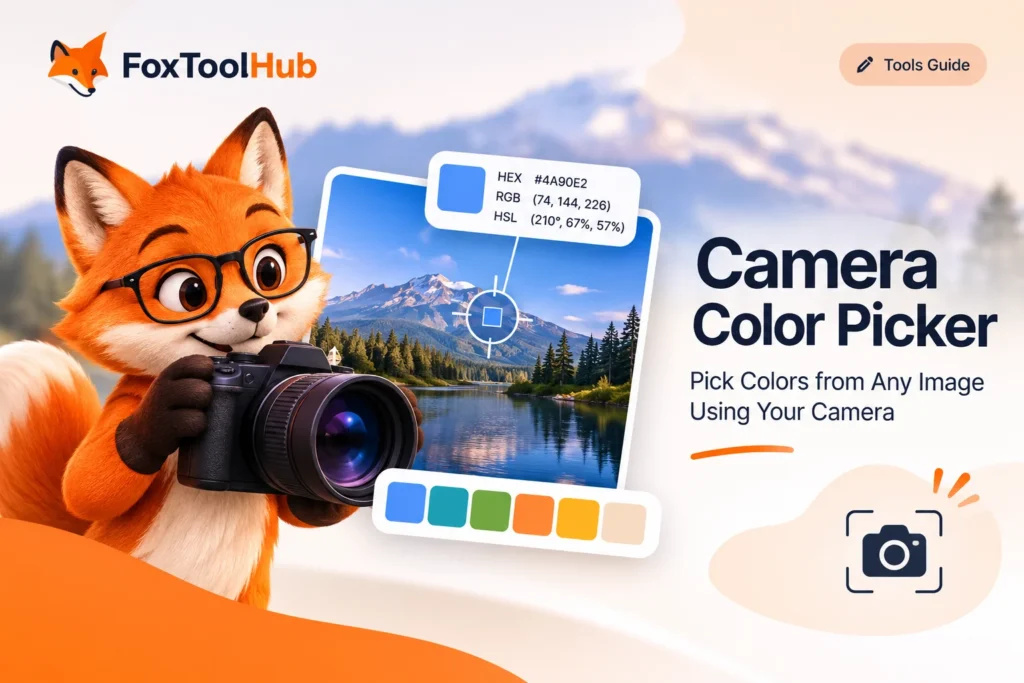
Have you ever seen a beautiful color in a flower, a piece of fabric, a product, or a painted wall and wondered how to find its exact color code? A Camera Color Picker makes it easier to identify colors from the real world using your device’s camera.
Instead of taking a photo, transferring it to your computer, and manually searching for a matching shade, you can use a camera-based color picker to explore colors directly from your surroundings. It is a practical way to collect color references for graphic design, web development, interior design, and creative projects.
In this guide, you will learn how camera color picking works, how to use it, what HEX, RGB, and HSL values mean, and how to get more consistent results.
What Is a Camera Color Picker?
A camera color picker is an online tool that uses your device’s camera to capture a live view of your surroundings and help you identify colors from objects in front of the camera.
For example, you might want to identify the color of a wall, a flower, a piece of clothing, a book cover, or a product package. Rather than estimating the color by eye, you can point your camera at the object and use the color selection feature to obtain a digital color value.
Depending on the tool, the selected color can be displayed in formats such as:
- HEX: A hexadecimal color code commonly used in websites and CSS.
- RGB: A color representation based on red, green, and blue values.
- HSL: A representation based on hue, saturation, and lightness.
These formats make it easier to reuse a sampled color in design software, websites, presentations, and other digital projects.
How to Pick Colors Using Your Camera
You can use the FoxToolHub Camera Color Picker to identify colors from objects around you.
- Open the tool: Visit the Camera Color Picker page in your browser.
- Allow camera access: If your browser asks for permission, allow camera access so the tool can display the camera feed.
- Point your camera at an object: Position the object you want to inspect within the camera preview.
- Select a color: Use the available color selection control to sample the desired area.
- Read the color value: Check the displayed color code and use the available copy option if provided.
Ready to try it? Open the
free online Camera Color Picker
and start exploring colors around you.
Understanding HEX, RGB, and HSL Color Codes
When you select a color digitally, you may see several different values representing the same color. These formats are useful in different design and development workflows.
1. HEX Color
HEX is a hexadecimal format widely used in web design and CSS. It usually consists of a hash symbol followed by six characters representing red, green, and blue components.
Example:
#4A90E2You can use a HEX value directly in CSS to set a background, text, border, or other color property.
.example {
  color: #4A90E2;
  background-color: #FFFFFF;
}
2. RGB Color
RGB stands for Red, Green, and Blue. Each component traditionally ranges from 0 to 255. Combining these three values produces a wide range of colors.
Example:
rgb(74, 144, 226)RGB is particularly useful when working with CSS, graphics applications, and digital interfaces.
3. HSL Color
HSL stands for Hue, Saturation, and Lightness. Unlike RGB, it describes colors using characteristics that are often easier to understand when adjusting a design.
- Hue: The color type, represented by an angle from 0 to 360 degrees.
- Saturation: The intensity or vividness of the color.
- Lightness: How light or dark the color appears.
Example:
hsl(213, 72%, 59%)Practical Uses of a Camera Color Picker
A camera-based color picker can be useful in many everyday and professional situations.
Web Design and Development
Designers and developers can identify colors from physical references and use the resulting values when creating website layouts, buttons, backgrounds, and other interface elements.
Interior Design
If you like the color of a piece of furniture, a decorative object, or a fabric, a camera color picker can help you create a digital reference before choosing complementary colors for a room.
Branding and Graphic Design
You can use physical packaging, printed materials, signs, and other visual references as inspiration for a digital color scheme. Keep in mind that printed colors and their camera readings may differ from the original design values.
Art and Creative Projects
Artists and content creators can use camera color picking to collect color references from nature, objects, architecture, and everyday environments.
Tips for Getting Better Color Results
Camera-based color selection is convenient, but the displayed color can be affected by the environment and your device. Follow these tips to get more consistent results:
- Use consistent lighting: Natural, indirect daylight can provide a useful starting point.
- Avoid reflections: Glossy surfaces can reflect nearby objects and change the apparent color.
- Watch out for shadows: Shadows can make an object appear darker than its actual color.
- Keep the camera steady: A stable view makes it easier to select the intended area.
- Choose a representative area: Avoid edges, highlights, and mixed-color regions when you want a specific shade.
- Compare multiple samples: Take more than one reading if the lighting or surface is uneven.
Limitations of Camera-Based Color Picking
A camera color picker provides a digital estimate of the color captured by your device. It should not be treated as a professional color measurement instrument.
Several factors can influence the result:
- Lighting conditions: Different light sources can change how an object appears to the camera.
- Camera hardware: Sensors, lenses, and image processing vary between devices.
- Automatic adjustments: Exposure, white balance, HDR, and other camera processing can affect captured colors.
- Display differences: The same HEX or RGB value may look different on different screens.
- Reflective surfaces: Glass, metal, and glossy materials can produce misleading readings.
For professional printing, paint matching, manufacturing, or color-critical work, use calibrated equipment and appropriate color-management workflows.
Camera Access and Browser Compatibility
Browser-based camera tools generally require permission before they can access your camera. Camera access also depends on browser support and the website’s security context.
If the camera does not start, check that:
- Your browser has permission to access the camera.
- You are using a supported, up-to-date browser.
- Your device has an available camera.
- Another application is not exclusively using the camera.
- The website is served over HTTPS.
Camera permission is separate from image processing and data storage. Check the tool’s privacy information to understand how camera frames and selected colors are handled.
Start Exploring Colors Around You
Finding a useful color does not always start with a design file. Sometimes, the best inspiration comes from the world around you.
A camera color picker provides a convenient way to turn visual references into digital color values that you can use in creative and technical projects. By understanding HEX, RGB, and HSL, and paying attention to lighting and camera conditions, you can make better use of the colors you discover.
Try it now:
Use FoxToolHub Camera Color Picker
to explore colors from your surroundings.