
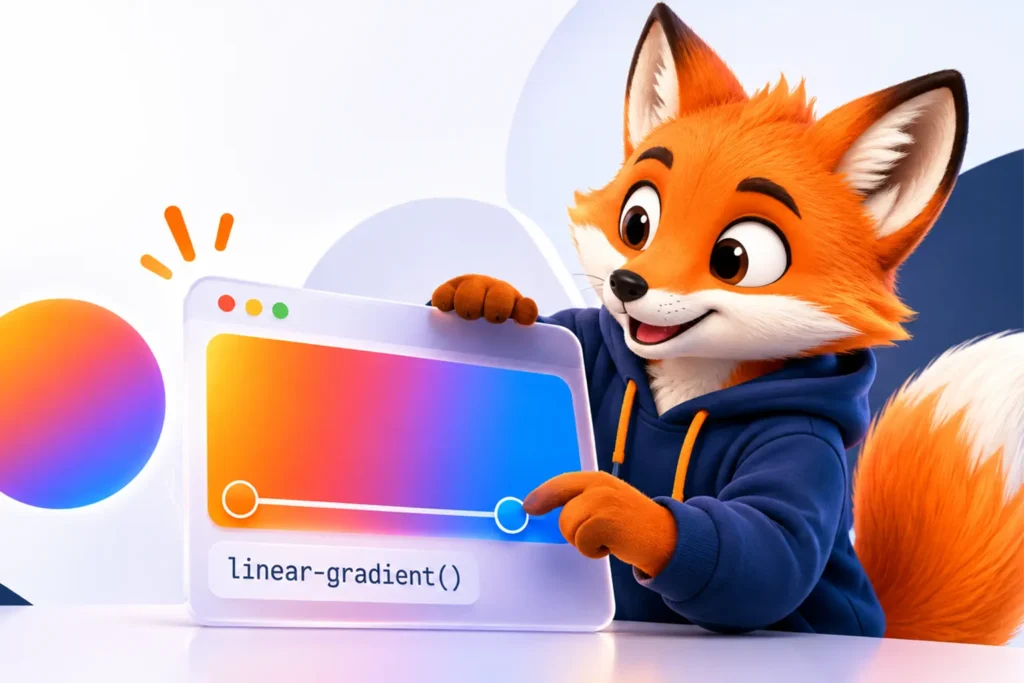
CSS gradients are a simple way to add depth, color, and visual interest to web designs. Learn about linear, radial, and conic CSS gradients, explore practical examples, and discover how to create beautiful gradient backgrounds.
What Is a CSS Gradient?
A CSS gradient is a smooth transition between two or more colors. Instead of using a single solid color or uploading a background image, you can use CSS gradients to create colorful backgrounds directly in your stylesheet.
Gradients are widely used in modern web design. They can make buttons more attractive, add depth to hero sections, highlight important content, and create visually interesting user interfaces.
One of the biggest advantages of CSS gradients is that browsers generate them dynamically. This means you can resize gradient backgrounds without worrying about image resolution or creating separate image files.
If you want to design a gradient without writing CSS manually, try the free CSS Gradient Generator on FoxToolHub to experiment with colors and create CSS gradient styles more easily.
The Three Main Types of CSS Gradients
CSS provides three main gradient functions: linear, radial, and conic. Each creates a different visual effect and is useful for different design situations.
1. Linear Gradient
A linear gradient transitions between colors along a straight line. You can control its direction using keywords or an angle.
For example, the following CSS creates a horizontal gradient that moves from blue to purple:
.linear-gradient {
  background: linear-gradient(
    90deg,
    #2563eb,
    #9333ea
  );
}
You can also use multiple colors and customize the direction:
.multi-color-gradient {
  background: linear-gradient(
    135deg,
    #ff7e5f,
    #feb47b,
    #7f7fd5
  );
}
Linear gradients are particularly useful for:
- Website hero sections and page backgrounds.
- Call-to-action buttons.
- Navigation bars and banners.
- Cards and decorative interface elements.
2. Radial Gradient
A radial gradient starts from a central point and spreads outward in a circular or elliptical shape. Unlike linear gradients, its colors radiate from the center rather than moving along a straight line.
Here is a simple example:
.radial-gradient {
  background: radial-gradient(
    circle,
    #38bdf8,
    #1e3a8a
  );
}
You can also change the gradient’s position and shape:
.radial-spotlight {
  background: radial-gradient(
    circle at top left,
    #fef08a,
    #f97316,
    #7c2d12
  );
}
Radial gradients work well for:
- Spotlight and glow effects.
- Decorative backgrounds.
- Highlighting specific areas of a design.
- Adding depth to cards and landing pages.
3. Conic Gradient
A conic gradient transitions between colors around a central point, following a circular path. It is different from a radial gradient because its colors rotate around the center instead of spreading outward from it.
For example:
.conic-gradient {
  background: conic-gradient(
    #ef4444,
    #facc15,
    #22c55e,
    #3b82f6,
    #ef4444
  );
}
Conic gradients are useful for:
- Color wheels and decorative circles.
- Rotational visual effects.
- Creative illustrations and backgrounds.
- Decorative progress indicators.
For important information such as charts and progress values, always provide an accessible text or data representation rather than relying on the gradient alone.
How to Create a CSS Gradient
Creating a gradient in CSS is straightforward. You only need a background property and one of the gradient functions.
Step 1: Choose a Gradient Type
Decide whether you need a linear, radial, or conic gradient. Your choice depends on the visual effect you want to achieve.
Step 2: Choose Your Colors
Select at least two colors that work well together. You can use HEX, RGB, HSL, or other valid CSS color values.
Step 3: Adjust the Direction
For linear gradients, use an angle or direction keyword. For radial gradients, adjust the center and shape. For conic gradients, customize the starting angle and center position.
Step 4: Adjust Color Stops
Color stops determine where each color appears along the gradient. You can specify their positions using percentages or appropriate CSS length or angle values, depending on the gradient type.
For example:
.custom-gradient {
  background: linear-gradient(
    90deg,
    #0f172a 0%,
    #2563eb 45%,
    #a855f7 100%
  );
}
Step 5: Preview and Test Your Design
Check the gradient against the actual size and content of your element. Make sure text remains readable and that the colors look consistent across different screen sizes.
Practical CSS Gradient Examples
Here are several CSS gradient styles you can use as starting points for your own projects.
Sunset Gradient
.sunset {
  background: linear-gradient(
    120deg,
    #ff512f,
    #dd2476
  );
}
This warm combination works well for promotional banners, buttons, and creative landing pages.
Ocean Gradient
.ocean {
  background: linear-gradient(
    135deg,
    #2193b0,
    #6dd5ed
  );
}
Blue gradients can create a calm and clean appearance, making them suitable for technology websites and modern interfaces.
Dark Gradient
.dark-background {
  background: linear-gradient(
    135deg,
    #141e30,
    #243b55
  );
}
Dark gradients are useful for professional dashboards, dark-themed interfaces, and sections that need a strong visual contrast.
Gradient with a Transparent Overlay
.gradient-overlay {
  background:
    linear-gradient(
      135deg,
      rgb(59 130 246 / 70%),
      rgb(147 51 234 / 50%)
    );
}
Transparent gradients can be layered over other backgrounds to create subtle color effects. You can also combine them with background images when needed.
Where Should You Use CSS Gradients?
CSS gradients can improve many parts of a website when used thoughtfully. Here are some common applications.
- Hero sections: Create an engaging first impression with a colorful background.
- Buttons: Make important actions stand out without using image assets.
- Cards: Add visual depth to feature cards and content blocks.
- Backgrounds: Give large sections a more interesting appearance than a solid color.
- Decorative elements: Build colorful shapes, borders, and visual accents.
- Overlays: Improve the appearance of text placed over background images.
Tips for Creating Better Gradients
A good gradient should support the content rather than distract from it. Keep these design principles in mind:
- Choose compatible colors: Use colors that complement each other instead of combining too many unrelated shades.
- Keep the design simple: Two or three well-selected colors are often enough.
- Check text contrast: Make sure text and important controls remain readable across the entire background.
- Use color stops carefully: Positioning stops can change how quickly colors transition.
- Consider the context: A subtle gradient may work better for a professional interface than a highly saturated one.
- Test on different screens: Check how the gradient looks on desktop, tablet, and mobile layouts.
Common CSS Gradient Mistakes
Using Too Many Colors
Adding too many colors can make a gradient look visually confusing. Start with two colors and add more only when they improve the result.
Ignoring Text Contrast
A background may look attractive on its own but make text difficult to read. Always check foreground and background contrast, especially for small text and interactive controls.
Choosing the Wrong Direction
The direction of a gradient affects how users perceive a design. Experiment with different angles to find the most suitable result for your layout.
Using Gradients Where Solid Colors Work Better
Not every component needs a gradient. Solid colors can be more appropriate for text-heavy sections, simple backgrounds, and interfaces where consistency is important.
Create a CSS Gradient Online with FoxToolHub
You do not have to remember CSS gradient syntax or write every color stop manually. The FoxToolHub CSS Gradient Generator makes it easier to experiment with gradient colors and create CSS backgrounds for your projects.
Instead of repeatedly editing CSS values, use the available controls to customize your gradient and generate CSS code for your website or design project.
Ready to create your own gradient? Try the CSS Gradient Generator and start creating your gradient online.
Final Thoughts
CSS gradients are a flexible way to add color, depth, and visual interest to modern websites. By understanding linear, radial, and conic gradients, you can choose the right effect for different components and create more polished interfaces.
Start with simple color combinations, experiment with direction and color stops, and always consider readability and accessibility. When you want to create a gradient more quickly, use a visual CSS gradient generator to simplify the process.